

Workspace Tool
Workspace: Save Drafts to your Own Computer
Our Note Designer® Workspace feature allows you to save drafts of your notes. So whether you want to make a backup of a long note you’re working on before you walk the dog, or you have several complex notes on the go after a busy clinical day, Workspace gives you more flexibility.
A quick video overview:
Things to know:
- Workspace is a downloadable desktop app – available as an optional add-on feature to your regular subscription – that connects to your regular Note Designer account.
- Workspace can store your inputs and selections in an encrypted form, to a database file on your own computer’s hard drive.
- As always, Note Designer® does not store your drafts or your actual finished notes on our server; we leave control of your notes in your hands. Workspace is intended for backing up selections and inputs while you draft your note. You should always export your finished note out of the program, to save someplace secure.
- It is possible to move a draft between computers, by exporting an encrypted draft from your office computer, for example, and then re-importing it into Workspace on your home computer.
More Details:
Purchasing
- Workspace is available (currently $5 per month) via our regular Note Designer® pricing page, here: https://notedesigner.com/pricing
- Or, if you already have a regular subscription you can add the Workspace feature by going to your Dashboard.
Downloading and Installing
- Downloading and installing should take 5 minutes or less
- Once you purchase the Workspace add-on you will be emailed a link to download it. Download the Windows or Mac version (or if you use more than one computer - a Windows desktop and a Mac laptop - you can download the version you need for each). *Please note that Workspace currently installs on only regular Windows or Mac operating systems; not on iPad, Chromebook, or most tablets.* Workspace uses modern browser security and encryption technology (e.g., Macs require macOS 12/Monterey or later).
- Find the installer file in your Downloads folder and click to run it.
- On Mac, installation involves sliding the ND icon into the folder icon.

- On Windows an installer process will begin - just follow through the screens.
- On Mac, installation involves sliding the ND icon into the folder icon.
- Once the installation finishes, your desktop app is installed and you can open it from your regular list of apps/programs.
- Because Workspace is distributed directly from Note Designer® Inc. to you (not through the Apple or Microsoft stores) your computer may show a warning when you are installing; you may need to override the warning to proceed with the installation.
Logging In
When you open Workspace on your computer, the Note Designer® login page will be opened in the app. You can login here as you normally would with your email address and password. You are then logged in as usual, but you can use Workspace to manage and save drafts on your computer.
Saving a Draft

- First select your preferred note type to start drafting your note.
- There is a green Save Draft button above the note. Click this button, give your draft a name so you can identify it later, and click Save.
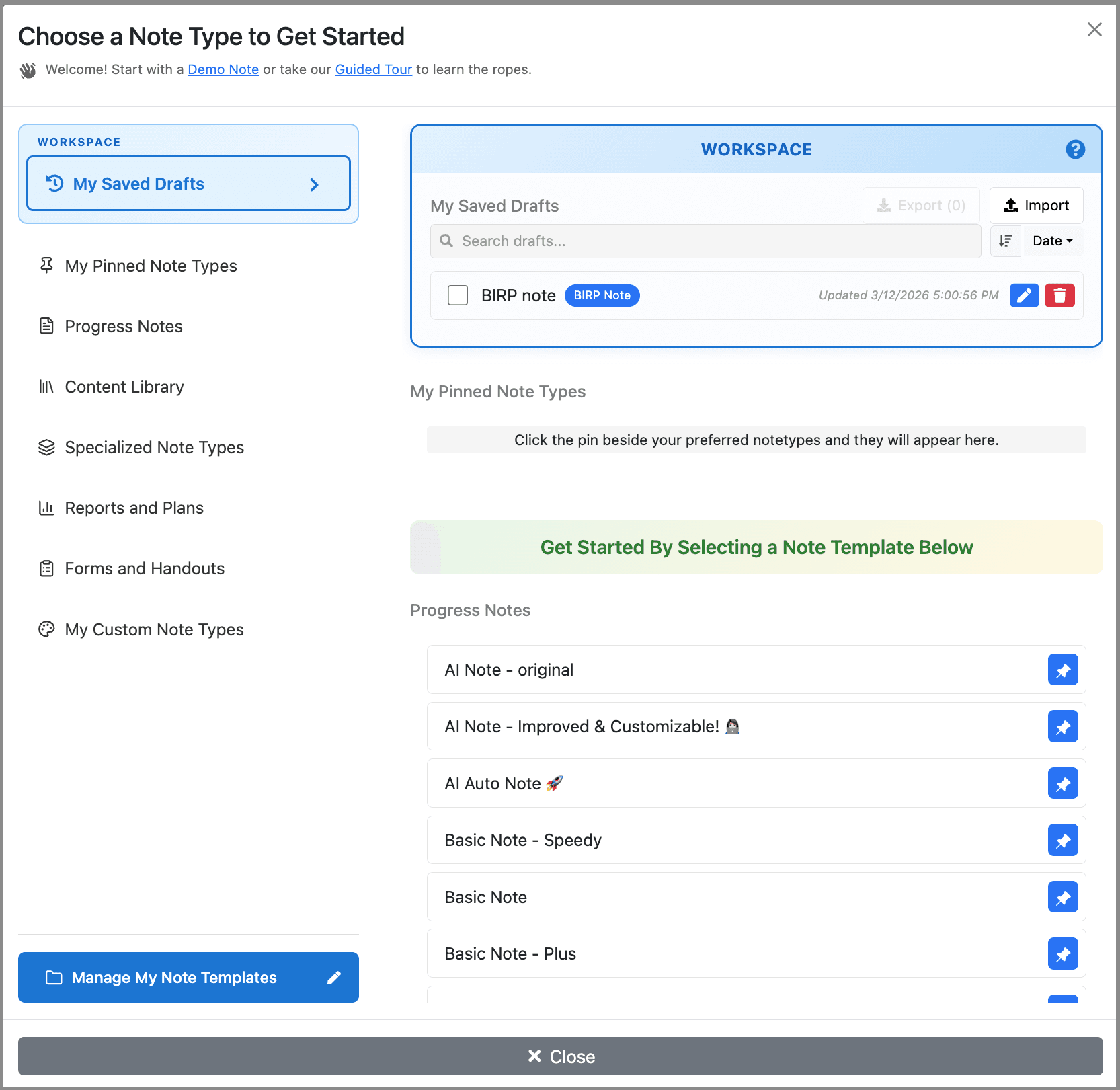
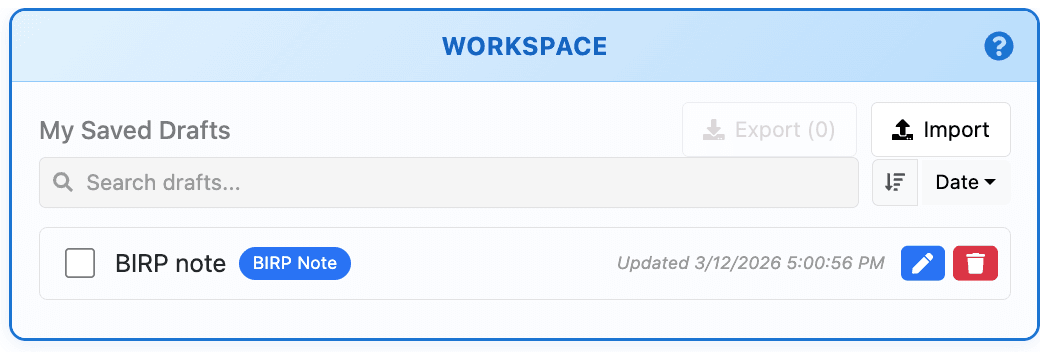
- When you return to the Start a Note section of the program, you will see your drafts at the top.
- You can rename drafts as you wish; simply use the blue pencil icon.
- You can delete your drafts at any time by using the red trash can icon.
- Though encrypted and secure, please do not use the workspace to save your completed client notes - these should always be exported and saved to your secure electronic file system. The workspace is for drafts only and is not an EHR.
Reloading a Draft
- To reload a draft, first click the usual +New Note button. Your drafts will appear at the top of the list of notes. Click on the name of the one you wish to reload.
Transferring a Draft to another device
- You can export a draft from one computer and import it into Workspace on a different computer.
- Go to your note list and use the checkboxes to select the note(s) you wish to export. Click the Export button that appears. You will now be able to find an encrypted file for each draft note, in your computer’s Downloads folder.
- Move the draft(s) (e.g., using an external drive or thumb drive) to your other computer. Then, open Workspace in computer 2, go to the Drafts section of your +Note list of templates, and click the Import button. This will allow you to locate and import your drafts from the external drive.
- Only you will be able to decrypt the drafts, because encryption/decryption is based on your user login information. You’ll need to be logged in to your account with an active subscription in order to encrypt or decrypt drafts.
Special Considerations
Changes to your Template
- If you store a draft, but then change your template (e.g., by removing statements or by reorganizing sections) Workspace may not be able to reload the draft completely. It will do its best to match the draft to the template, but deleted or edited statements may not be displayed as they were in the original.
Offline Use
- Some limited functionality is available even if offline. For example, if you have a saved SOAP note draft, you may be able to open it and work on it – but only if you loaded the SOAP note template into Workspace before going offline. That is, only the currently-loaded template can be used. We encourage you to test out this functionality in advance if you plan to be offline for a few hours or days and you will want to work on drafts. Please note that offline functionality is time-limited to just a few days before you will be required to connect to the online server again.
Other Questions?
If you cannot find the answer you are looking for, feel free to contact us.
Contact us